

The Boundaries Layer displays administrative boundaries on your map as a permanent reference (postcodes, ZIP codes…). The layer stays visible at all times, whether you’re analyzing data or presenting to a prospect.
You can keep the Boundaries Layer on while drawing a new zone, editing an existing one, or just navigating the map.
How to display the admin boundaries layer #
- Click the Layer button in the bottom-left corner of your map.
- Select Boundaries from the four options (Default / Heatmap / Boundaries / Satellite).
- In the Boundaries panel that opens, click the dropdown and pick the boundary level you want to display.
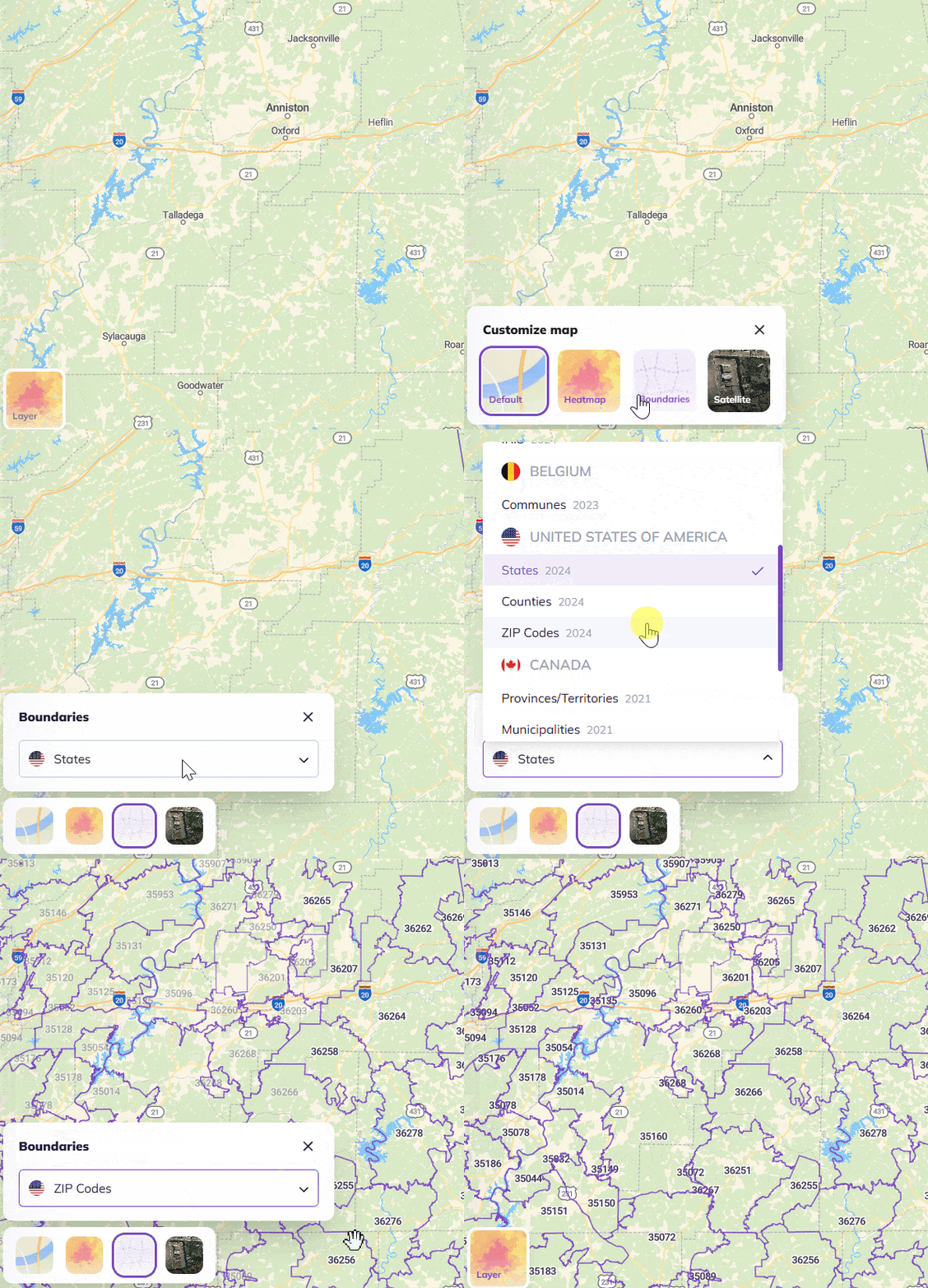
The layer updates instantly. Any zone you’ve already created on the map stays untouched.
How to switch boundary levels #
To change the level — for example, from States to ZIP code:
- Reopen the Boundaries panel.
- Click the boundary dropdown.
- Pick another level.
How to hide the boundary layer #
Open the Layer button and click Default to return to the standard map view.
Boundary levels available by country #
| United States | – States – Counties – ZIP Codes |
| Canada | – Provinces / Territories – Municipalities – Postal codes |
| United Kingdom | – Postcode districts – Postcode sectors |
| Australia | – Postal Areas |
| France | – Communes – Départements – Codes postaux – IRIS |
| Spain | – Autonomous communities – Province – Cities |
| Belgium | – Communes |