

Feature available in: PRO and ADVANCED PLANS
(US, UK, Canada, Australia, Spain, France, and Belgium only)Once your metrics are set, you can export their results for all the areas on your map into a single Excel file to compare them at a glance.
Open the right panel under “My Metrics”.

In the area selection menu at the top, choose an area, a file, or the whole maps
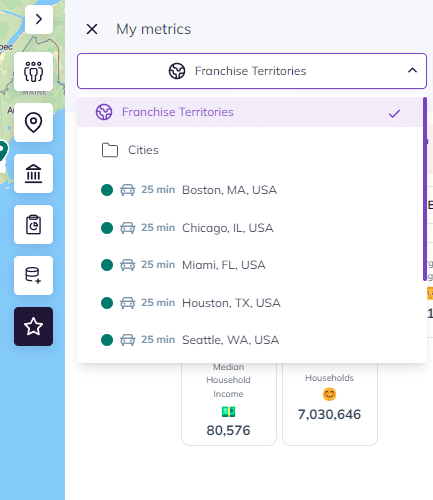
Click on the “Export” button
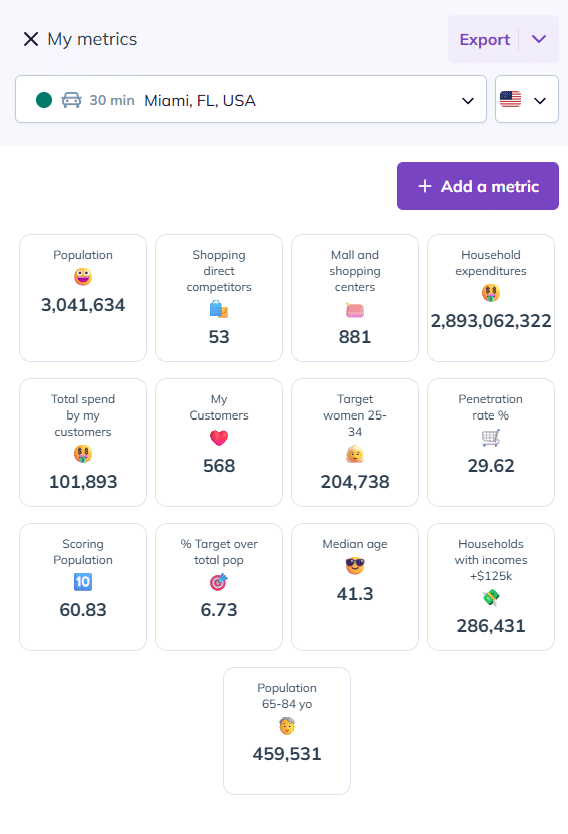
Available data in the exported Excel file
The downloaded Excel file contains three tabs:
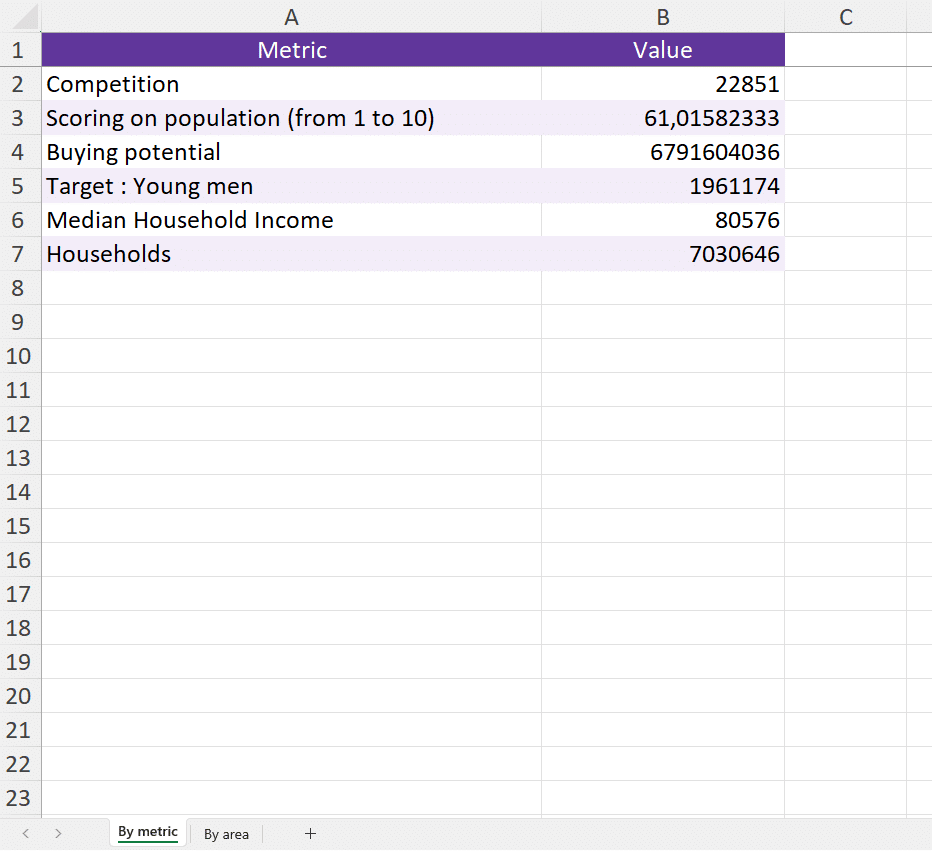
Tab 1: The summary of each metric computed across all areas.
(In case of overlapping areas, the calculation will only be performed once.)
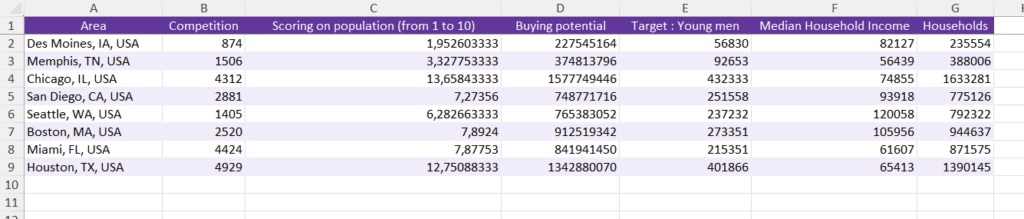
Tab 2: The detailed result of each metric by area, ideal for comparing, segmenting, and optimizing your local strategies at a glance.
Tab 3: The detailed result of each metric by territory (ZIP Code, Postcode sectors…) if your area has been created in territory mode.
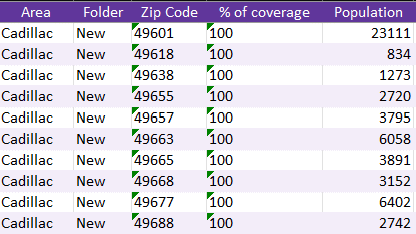
Download our sample file here:
To go further: