

Table Of Contents
If you have created an area in one folder but later want to organize it in a different folder, you can easily move it from the area-management panel.
Method 1: Drag and Drop an area
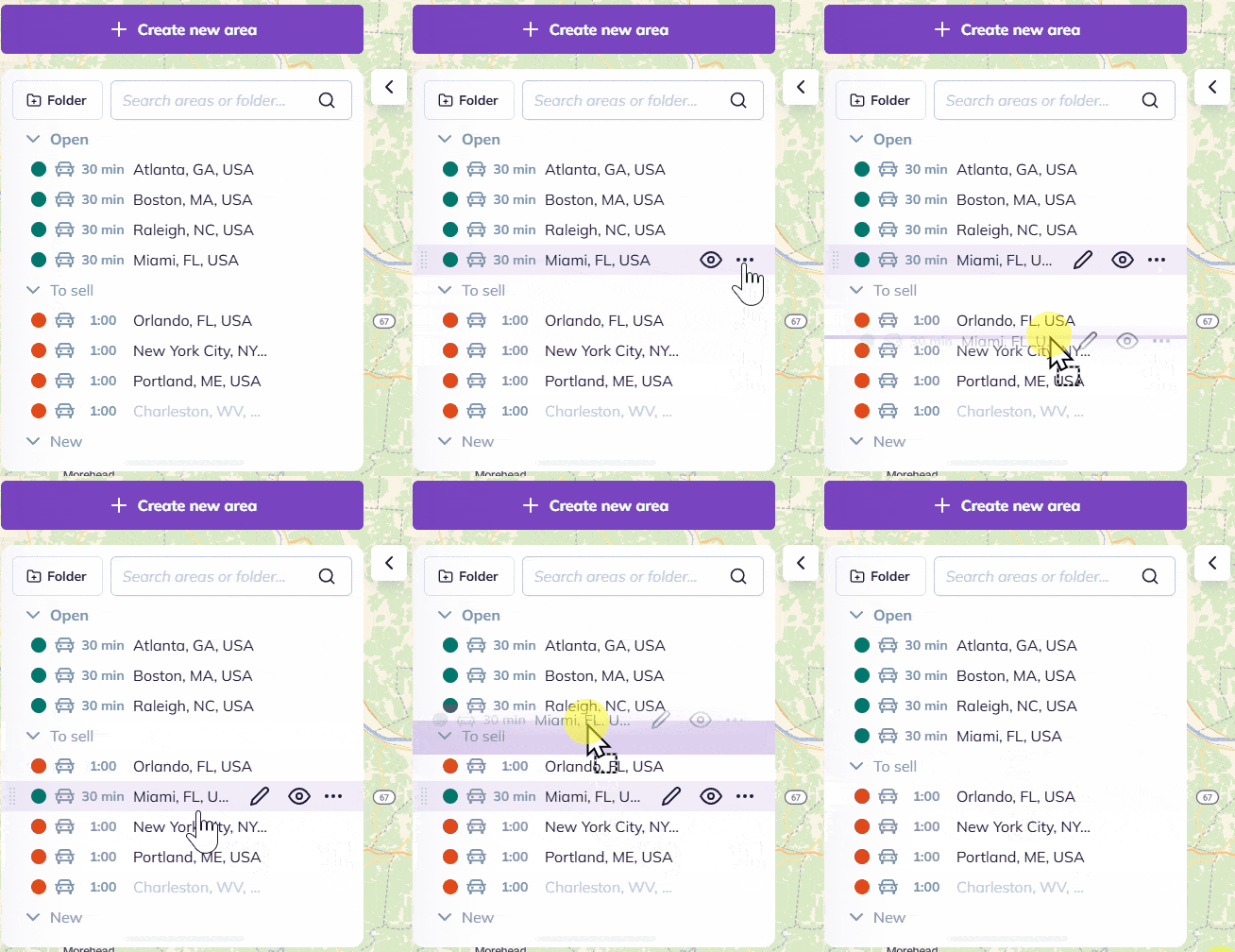
- Open the area-management panel.
- Click on the area you want to move.
- Drag and drop the area into the desired folder. The area is moved immediately to the new folder.
Method 2: Use the “Move to…” Option
This method is recommended if you have many areas or folders.
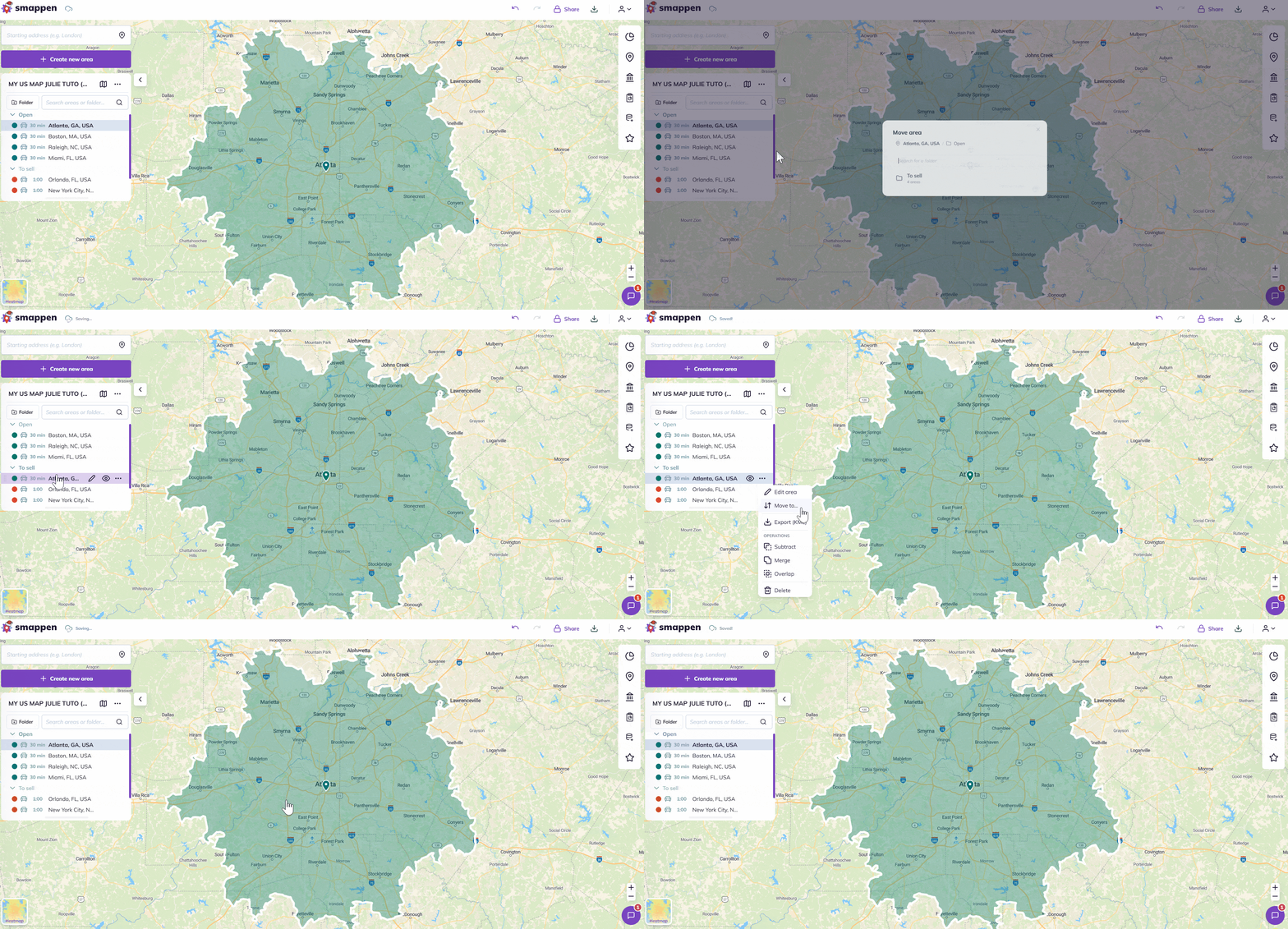
- Open the area-management panel.
- Click the three dots “…” at the end of the area’s row.
- Select “Move to…”.
- Choose the destination folder. The area is automatically moved.
FAQ
🟢 Can I move multiple areas at the same time?
No, it is currently not possible to move multiple areas simultaneously.
If this feature would be useful to you, feel free to let us know via the in-app chat. Your feedback is shared with our product team.
To go further: